How Git works
Written for engineers who want to understand Git rather than memorise commands.
Mental Model: What Git Is
A lot of pain with Git comes from thinking about it as:
- A timeline of commits
- A central server and client
- Files changing over time
This is wrong (or at least not the useful view).
The right mental model:
Git Is a Content-Addressable Database of Snapshots, Connected Into a Directed Acyclic Graph (DAG)
Let’s unpack that without getting academic.
Git stores snapshots, not diffs
When you commit:
- Git stores what your project looks like now, not a diff from the previous commit.
- Internally, each commit points at a tree (your folder hierarchy).
- Trees point at blobs (file contents).
- The entire structure is immutable. Once stored, Git never edits it; it adds new objects.
This is why:
- Rewriting history does not break the past; it makes new commits.
- Rollback doesn’t delete old work; it points somewhere else.
The DAG: Directed Acyclic Graph
This matters more than people realise.
Git commits form a DAG:
- Directed: each commit points to one or more parents
- Acyclic: no cycles; a commit never points “forward”
- Graph: not a straight line; merges create multiple parents, and branching creates diverging nodes
If you zoom out, a DAG with a branch and a merge looks like this:
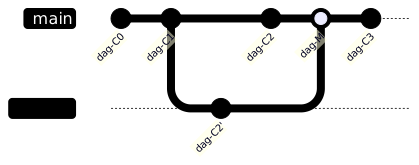
A branch and a merge in the commit DAG
People imagine this instead, as a straight line:

The commonly (and incorrectly) imagined linear history
The DAG is not linear. It’s a web of snapshots.
This is useful because branching and merging are cheap: you are moving pointers.
- A branch is a label pointing at a commit
HEADis a pointer to “your current branch”- Moving branches does not rewrite the DAG; it moves the label
That is incredibly powerful.
The DAG explained step-by-step
Let’s illustrate two developers working:
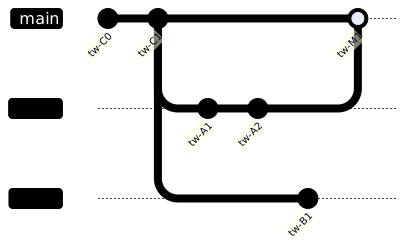
Two developers branching and merging into main
Important details:
Commit IDs are hashes
The commit hash is content + metadata:
commit = hash(tree + parents + message + timestamp + author...)
Change anything → new hash.
That’s why rebase creates new commits:
You change the commit parent → different hash.
No central truth
With Git, there isn’t one single “timeline”.
There are many possible paths.
mainis a pointer your team agrees is the official one- Feature branches are different paths in the DAG
Merge = “join two DAG paths”
- Git finds the merge base
- Calculates diffs from base → both branches
- Tries to apply both into a new merge commit
This is three-way merge, which is far smarter than diffing two files.
HEAD, branch pointers, and detached HEAD
HEADpoints to the current branch- That branch pointer points to a commit
- That commit points to a tree
Example:

HEAD, a branch pointer, and the commit it references
When you checkout <commit> (not branch):

Detached HEAD pointing directly at a commit
That’s “detached HEAD”: HEAD points straight at the commit, with no branch label between.
You’re not on a branch.
If you commit from here, the commit is unreferenced until you create a branch.
That’s why people “lose” commits: they make them where no pointer references them.
Reflog solves that later.
Working Model: Local vs Remote
Git is distributed:
- Your local
.gitis a full database - Remotes are other copies
pushandpullare synchronisation events
You don’t “check files out from the server”.
You replicate the DAG, then collaborate via branch pointers.
Zones: Working directory, Index, Repository
Understanding these is essential:
Working Directory
Your actual files.
Index (Staging Area)
Snapshot you want to commit next.
Repository
All commits and history in .git.
Cycle:

The working directory, index, and repository cycle
This explains why:
git commitdoes not commit everything changed, only what you staged.- You can stage part of a file.
Basic workflow with explanation
git status
git add file.c
git commit -m "Fix A"
git push origin main
Nothing magical.
No server-side locking.
No checkout/in/out.
No central timeline.
Branching in Depth
Branches Are Pointers
A branch is:

A branch as a pointer to a commit
When you commit, Git:
- Makes a new commit
- Moves
featureXto the new commit
That’s it.
Creating and switching
git checkout -b feature/api
This creates:

HEAD following a newly created feature branch
Commits now extend the feature branch, not main.
Merging: Detailed Explanation
Merging is not file copying.
Merge base
To merge A and B:
- Find their last common commit (merge base).
- Calculate changes from base → A
- Calculate changes from base → B
- Apply both to base
- If conflicts → ask you
Example:
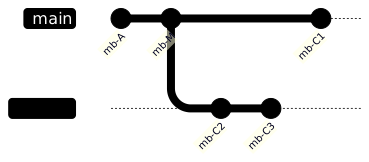
Merge base of two diverged branches
Merge base = M.
This is why you can merge branches even if they diverged months ago.
Merge types detailed
Fast-forward merge
History is linear, with no divergence. Feature branched off B, and main has not moved since:
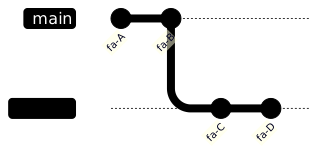
Two branches before a fast-forward merge
Since main did not move, Git moves the main pointer forward to D; no new commit is created:
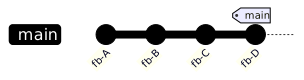
State after a fast-forward merge
Merge commit
Both main and feature moved since they diverged, so Git creates a new merge commit M with two parents:
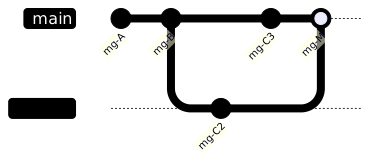
A merge commit joining two diverged branches
Merge creates new commit M.
No fast-forward merge (--no-ff)
Teams often want to preserve branch context.
So they force a merge commit even if fast-forward is possible.
This keeps feature branches visible in history.
Merge conflicts
Conflicts happen when:
- Same line changed
- Adjacent lines changed
- File moved in one branch and edited in another
- Binary files can’t be merged
When Git cannot reconcile both sides automatically, it writes conflict markers directly into the file:
<<<<<<< HEAD
int retries = 3;
=======
int retries = 5;
>>>>>>> feature/tuning
- Everything between
<<<<<<< HEADand=======is your current branch’s version. - Everything between
=======and>>>>>>> feature/tuningis the incoming branch’s version. - You edit the file to keep the version you want (or blend both), then delete all three marker lines.
Conflict resolution is not about guessing: it is about intent.
Good practice:
- Resolve conflicts one commit at a time
- Do not keep one side without checking it
- Compile and test after merge
Merge Strategies
git merge picks a strategy automatically based on how many branches you are merging, but you can choose one explicitly with git merge -s <strategy>. This is a different question from the fast-forward or merge-commit outcome described above. The strategy is the algorithm Git uses to combine the branches, not the shape of the resulting history.
| Strategy | What it does | When to use |
|---|---|---|
ort |
The default since Git 2.34. A three-way merge that detects renames and handles criss-cross merge bases better than its predecessor. | Almost always; this is what runs when you type plain git merge. |
recursive |
The previous default three-way merge algorithm. Still available and still correct, just superseded by ort. |
Rarely chosen deliberately; occasionally useful for compatibility with older tooling. |
--ff-only |
Not a merge strategy as such, but a flag that refuses to create a merge commit: it only succeeds if the merge could fast-forward. | Enforcing a linear history on shared branches, or checking whether a merge would be trivial before doing it. |
ours (-s ours) |
Records a successful merge but keeps your current branch’s tree entirely, discarding every change from the other side. | Deliberately marking a branch as merged without taking its content, for example retiring an old branch while preserving its history in the graph. |
octopus |
Merges more than two branches in a single commit. Chosen automatically when you run git merge branchA branchB branchC. Has no built-in conflict resolution: it fails outright if there is any conflict. |
Combining several independent, low-risk topic branches at once, typically by a release manager. |
resolve |
An older two-branch three-way merge algorithm, simpler and more conservative than recursive/ort, without rename detection. |
Rarely needed today; kept for compatibility and as a fallback for edge cases ort handles poorly. |
subtree |
A variant of the recursive/ort algorithm that treats one project’s history as if it were always a subdirectory of the other, adjusting paths on the fly. | Merging in another project’s history at a specific path; this is the strategy git subtree (below) uses internally. |
Git merge strategies and when each applies
Strategy Options vs Strategy
Do not confuse the strategy itself with -X strategy options, which tune the ort/recursive algorithm’s conflict resolution rather than replacing it:
git merge -X ours feature/x     # on a per-hunk conflict, prefer our side; still a real three-way merge
git merge -X theirs feature/x   # on a per-hunk conflict, prefer their side; still a real three-way merge
git merge -s ours feature/x     # ignore the other branch's changes entirely, for every file
-X ours only wins conflicting hunks in your favour and still incorporates the other branch’s non-conflicting changes. -s ours is far more drastic: nothing from the other branch reaches the working tree at all, only a merge commit recording that it happened.
Rebase: Detailed View
Rebase is misunderstood.
What Rebase Does
Rebase:
- Takes your commits
- Temporarily removes them
- Moves branch pointer to another base
- Replays commits one by one:

Commits replayed onto a new base during rebase
These are new commits.
Original ones remain in reflog until pruned.
Why Rebase
For feature work:
- You want a clean story: “main → my work”
- Without messy merge commits
Rebase lets:
- Code review be easier
- Bisection simpler
- History readable
When NOT to rebase
Never rebase a branch that others already use.
You change commit IDs → their work breaks.
Rule:
- Local = rebase ok
- Shared = prefer merge
Log and Reflog: Powerful Inspection
git log: Reading the DAG
Examples:
git log --oneline --graph --decorate --all
This shows:
- Branch pointers
- Tags
- Merge structure
Also helpful:
git log --patch           # show diffs
git log --stat            # file changes
git log --first-parent    # follow merges on main
git log path/to/file.c    # history of a file
--first-parent is brilliant for release history.
git reflog: The Time Machine
Reflog tracks pointer movements:
- HEAD moved
- Branch moved
- Checkout happened
- Reset happened
Even after you think you “deleted” commits, they are in reflog.
git reflog
Recovery example:
git reset --hard <id-from-reflog>
This is how you recover broken history.
Bisect: Finding the Commit That Broke Something
git bisect performs a binary search across the DAG to find the commit that introduced a regression. It is invaluable when you know “it worked at some point” but not where it stopped.
How it works
- Tell Git a known-bad commit (usually
HEAD) and a known-good commit (an older tag or commit). - Git checks out a commit halfway between the two.
- You test it and tell Git
goodorbad. - Git halves the remaining range and repeats.
- After
log2(n)steps, Git identifies the exact first-bad commit.

Binary search narrowing to the first bad commit
Manual bisect
git bisect start
git bisect bad                 # HEAD is broken
git bisect good v1.4.0         # this tag was fine
# Git checks out a midpoint commit
# ...build and test...
git bisect good                # or: git bisect bad
# repeat until Git reports the first bad commit
git bisect reset               # return to where you started
Automated bisect
If the regression can be detected by a script or test command, let Git drive the whole search:
git bisect start HEAD v1.4.0
git bisect run npm test
Git runs the command at each step and interprets a non-zero exit code as bad, zero as good, so no manual testing is required.
Pull Requests: Real-World Workflow
PRs are workflow, not Git. But they use Git theory.
Modern development flow:
Creating a PR
- Branch:
git checkout -b feature/mag-tamper
- Commit locally until complete.
- Pull latest main into branch:
git fetch origin
git rebase origin/main      # or git merge origin/main
- Push branch:
git push -u origin feature/mag-tamper
-
Create PR:
- Source:
feature/mag-tamper - Target:
main(ordevelop)
- Source:
Good PR hygiene
A good PR:
- Is small
- Solves one problem
- Has clear title: what + why
- Contains description:
- Motivation
- Changes
- Testing
- Impact
- Steps to verify
Review etiquette
Rules for reviewers:
- Review code, not people
- Ask questions before demands
- Suggest alternatives
- Provide rationale
- Don’t bike-shed
Rules for authors:
- Respond with respect
- Document decisions
- Don’t ignore comments
- Avoid making PRs “3-in-1” refactors, features, formatting
Merge options in PR UI
You usually get three options for combining a pull request. These are different from both the fast-forward or merge-commit outcome and the ort/recursive/ours algorithm choice covered earlier. This is the menu a PR tool (GitHub, GitLab and similar) offers when you click merge. Starting from the same point, main at A, with feature carrying two commits:
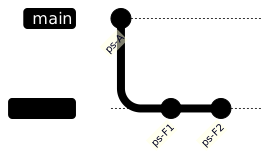
Starting point shared by all three PR merge options
Merge Commit (PR Option)
Preserves branch history: every commit from feature stays, joined by a new merge commit with two parents.
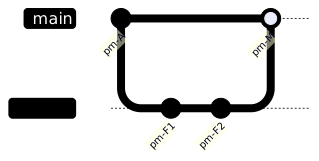
Resulting history from a merge commit
A good choice when context matters.
Squash and merge
Combines all of feature’s commits into a single new commit on main. The individual F1/F2 commits and the branch structure are gone from main’s history.
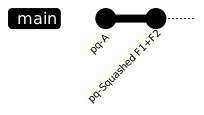
Resulting history from squash and merge
Good for messy feature history.
Rebase and merge
Replays feature’s commits one by one onto the tip of main as new commits, then fast-forwards, with no merge commit at all.
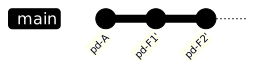
Resulting history from rebase and merge
Linearises history. Good for clean timelines.
Choosing between them
| Option | Resulting history | Individual commits kept? | Good For |
|---|---|---|---|
| Merge commit | Branch shape preserved, plus a merge commit | Yes, unchanged | Preserving how and when work happened |
| Squash and merge | One new commit on main |
No, collapsed into one | Messy or WIP feature history you do not want on main |
| Rebase and merge | Linear, feature commits replayed onto main |
Yes, but with new commit IDs | A clean, bisectable, linear timeline |
Comparison of the three pull request merge options
Team should have a default policy.
Cherry-Pick: Selective History
Use cases:
- Backport fix to old release branch
- Take isolated commit without full merge
Risk:
- Can duplicate commits across branches
- Future merges may conflict badly
Rule:
- Cherry-pick isolated fixes
- Avoid cherry-picking whole feature work
Tags: Marking Releases
A tag is a fixed pointer to a specific commit. Unlike a branch, a tag never moves once created; it exists to mark a point in history, most commonly a release.
Lightweight vs Annotated Tags
- A lightweight tag is just a name pointing at a commit, with no extra metadata:
git tag v1.2.3. - An annotated tag is a full Git object: it stores the tagger, date, and a message, and can be GPG-signed. Use annotated tags for anything you intend to keep, including every release:
git tag -a v1.2.3 -m "Release 1.2.3: PAN recovery fix"
git tag -s v1.2.3 -m "Release 1.2.3"   # signed, if you use GPG
Working with Tags
git tag                        # list tags
git tag -l "v1.2.*"            # list tags matching a pattern
git push origin v1.2.3         # push a single tag
git push origin --tags         # push all tags
git tag -d v1.2.3               # delete locally
git push origin --delete v1.2.3 # delete on the remote
git describe --tags             # nearest tag reachable from HEAD
Naming and Placement
Tag names conventionally follow Semantic Versioning: vMAJOR.MINOR.PATCH, for example v2.1.0. Where you tag depends on the branching strategy. On trunk-based or GitHub Flow projects, tag the commit on main right after it is deployed. On GitFlow, release branching or cherry-pick release branching, tag the commit on the release/x.y branch once it is finalised, not on main.
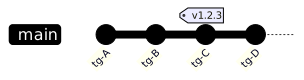
A tag pinned to a specific commit, unaffected by later commits
Tags vs Branches
Both are refs, both point at a commit, and both are cheap to create, but they mean different things and Git treats them differently:
| Question | Branch | Tag |
|---|---|---|
| Does it move? | Yes, automatically, with every commit made on it | No; it stays on the commit it was created against |
| What does it represent? | Ongoing work: a line of development | A fixed point: a release, a milestone |
| Can you commit “onto” it? | Yes, that is the point | No; there is nothing to check out and extend the way you would a branch |
| Typical lifetime | Created and deleted routinely | Created once, kept indefinitely |
| Stored under | refs/heads/ |
refs/tags/ |
How tags and branches differ
A practical rule of thumb: if you expect to add more commits to it, it is a branch. If it marks a point you want to return to exactly, it is a tag.
Reset vs Revert: When and Why
Revert
Safe for shared history:
git revert <commit>
Adds a new commit undoing the change.
Reset
Moves branch pointer:
git reset --soft HEAD~1
git reset --mixed HEAD~1
git reset --hard HEAD~1
Only safe when:
- Never pushed
- Only you have it
Debugging Git mistakes
“I lost my commits”
Solution: reflog. See git reflog: The Time Machine, above, for how this works.
Detached HEAD
Solution:
git branch recovery
See HEAD, branch pointers, and detached HEAD, above, for why this happens.
Bad merge
Solution:
git revert -m 1 <merge-commit>
-m 1 tells revert which parent of the merge commit to treat as the mainline; see Merge types detailed, above, for what a merge commit’s parents are.
Worktrees: Multiple Branches at Once
A worktree is a second working directory backed by the same .git database. It lets you have more than one branch checked out at the same time, without stashing, without a second clone, and without duplicating the object history.

One .git database backing two working directories
When Worktrees Help
- A hotfix lands while you have uncommitted work in progress: check out the hotfix branch in a second worktree instead of stashing.
- Running the previous release’s test suite while continuing development on
main. - Reviewing a colleague’s pull request locally without disturbing your own checkout.
Worktree Commands
git worktree add ../hotfix-dir hotfix/urgent   # new worktree on an existing branch
git worktree add -b review/pr-42 ../review-dir origin/pr-42   # new branch + worktree
git worktree list
git worktree remove ../hotfix-dir
git worktree prune                              # clean up after manually deleting a worktree directory
Caveats
- The same branch cannot be checked out in two worktrees at once; Git refuses with “already checked out”.
- All worktrees share the same object database and remotes; deleting the original clone breaks every worktree that depends on it.
- Worktrees are local-only. They are not something you push, pull, or see reflected for other clones of the repository.
Submodules: Nesting Repositories
A submodule embeds one Git repository inside another, at a specific subdirectory, pinned to one exact commit. The parent repository does not store the submodule’s files or history, only a pointer. The pointer is its URL and the commit it should be at, recorded in a .gitmodules file and a special gitlink entry.

A parent repository pointing at a pinned commit of a submodule
When Submodules Help
- Vendoring a shared library or firmware component that several independent repositories need, at an explicitly pinned version.
- Splitting a large codebase into separately-versioned repositories that are still assembled together for a build.
Submodule Commands
git submodule add https://example.com/lib.git libs/lib   # add a submodule
git clone --recurse-submodules https://example.com/app.git   # clone, including submodules
git submodule update --init --recursive          # populate submodules after a plain clone
git submodule status                              # commit each submodule is pinned to, and whether it's clean
git submodule foreach 'git pull origin main'      # run a command in every submodule
To change what a submodule points at: commit and push inside the submodule first, then commit the updated pointer in the parent repository. Forgetting the second step is the most common submodule mistake; the parent repository silently keeps pointing at the old commit.
Caveats and Alternatives
- Submodules are a frequent source of confusion: a plain
git cloneleaves submodule directories empty untilsubmodule update --initruns, and CI pipelines need explicit configuration to check them out. - Checking out a submodule leaves it in a detached HEAD by design, since it is pinned to a commit rather than a branch; work done there needs its own branch and its own push before the pointer commit in the parent will make sense to anyone else.
git subtreeis the main alternative; see below.- A monorepo avoids the pointer/pinning problem entirely by keeping everything in one repository, at the cost of a larger single checkout and coarser access control.
- For dependencies that have a package manager (npm, pip, NuGet), version pinning through that package manager is usually simpler than a Git submodule.
Subtrees: Embedding History Directly
Where a submodule stores a pointer to another repository, git subtree copies that repository’s files and history directly into a subdirectory of the parent repository. There is no separate clone step and no .gitmodules file: once merged in, a subtree is ordinary, versioned content as far as anyone cloning the parent repository is concerned. Under the hood it uses the subtree merge strategy described above.

A subtree merges another project’s files and history directly into a subdirectory
Subtree Commands
git subtree add --prefix=libs/lib https://example.com/lib.git main --squash
git subtree pull --prefix=libs/lib https://example.com/lib.git main --squash
git subtree push --prefix=libs/lib https://example.com/lib.git main
--squash collapses the incoming project’s history into a single commit rather than importing every commit it ever had; drop it only if you specifically want the full imported history.
Subtree vs Submodule
| Question | Submodule | Subtree |
|---|---|---|
| What the parent repo stores | A pointer (URL + commit) | The actual files and (optionally) history |
| Consumer experience after plain clone | Empty directory until submodule update --init |
Works immediately; nothing extra to run |
| Pushing changes back upstream | Straightforward: commit and push inside the submodule | Awkward: subtree push re-derives commits to send |
| Repository size | Small; only a pointer is stored | Grows with the vendored content, unless --squash is used |
| Clarity that content is external | Explicit and visible in .gitmodules |
Implicit; nothing marks the directory as vendored beyond convention |
Choosing between a submodule and a subtree
As a rule of thumb, use a submodule when you want an explicit, easily updated pointer to a fast-moving dependency. Use a subtree when consumers should be able to clone and build with no extra steps, and you rarely push changes back upstream.
Git Hooks: Automating Actions
A hook is a script Git runs automatically at a specific point in its workflow. Hooks live as executable files under .git/hooks/, named after the event they respond to.
Client-Side and Server-Side Hooks
| Hook | Runs | Typical use |
|---|---|---|
pre-commit |
Before a commit message is even written | Run linters or formatters; block the commit on failure |
commit-msg |
After the message is written, before the commit is created | Enforce a commit message format, for example a ticket-number prefix |
post-commit |
After the commit is created | Notifications; local logging |
pre-push |
Before git push sends anything |
Run the test suite; block pushes on failure |
post-checkout |
After checkout or switch |
Rebuild generated files; warn about stale dependencies |
post-merge |
After a merge completes | Reinstall dependencies if the lockfile changed |
pre-receive / update / post-receive |
On the server, when a push arrives | Enforce branch-protection policy; trigger CI; notify chat |
Common Git hooks and what they are used for
The Catch: Hooks Are Not Versioned by Default
.git/hooks/ lives inside .git, and .git is never cloned or pushed; it is regenerated locally by every clone. That means hooks placed there do not travel with the repository, and every teammate would need to install them by hand. Two ways around this:
git config core.hooksPath .githooks # point Git at a versioned directory instead
Commit a .githooks/ directory alongside the code, and every clone that runs this one config command uses the team’s shared hooks. Alternatively, tools such as Husky, pre-commit, or Lefthook manage this automatically, usually by installing themselves via a post-checkout or dependency-install step.
Example: A Minimal pre-commit Hook
#!/bin/sh
if git diff --cached | grep -q "TODO"; then
    echo "Commit blocked: staged changes contain a TODO"
    exit 1
fi
Save this as .githooks/pre-commit, make it executable (chmod +x), and set core.hooksPath as above. A non-zero exit code blocks the action; a zero exit code allows it through.
Git Branching Strategies
Main-Only (Trunk-Only / Single-Branch)
Description
- There is only one long-lived branch (typically
main). - All work, whether feature, bugfix, or experiments, is committed directly to
main. - No persistent feature branches.
- Typical branch names: none needed; everything happens on
main.
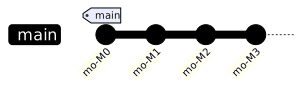
Main-Only branching: all work committed directly to main
When to Use
- Small teams or solo projects.
- Prototyping, proof-of-concept, or minimal codebases.
- Projects with frequent releases and minimal complexity.
Pros
- Minimal setup.
- No branch overhead.
- No merge conflicts due to long-lived branches.
Cons
- Risky: every change goes straight into shared history, which makes it straightforward to break things.
- Little isolation, making it hard to test big changes without risk.
- Hard to track work per feature or separate stable vs experimental changes.
Verdict
Only viable for minimal or short-lived projects. For anything non-trivial, isolation (feature branches or similar) is usually worthwhile.
Feature-Branching
Description
- Each new feature, bugfix, or task gets its own branch, typically named something like
feature/xyz,bugfix/1234, etc. - Developers work in isolation in that branch.
- When done + reviewed, branch is merged into
main. - Typical branch names:
feature/<ticket-or-slug>,bugfix/<ticket-or-slug>.
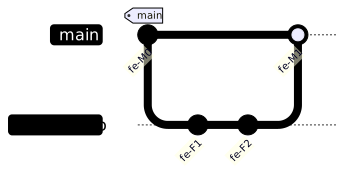
Feature-Branching: isolated branches merged into main
When to Use
- Teams working on multiple features in parallel.
- Codebases needing isolation per feature for safe development.
- Most modern development workflows.
Pros
- Good isolation per feature.
- Parallel development without interference.
- Straightforward to discard or delay features if needed.
- Clear mapping between branch and work item.
Cons
- If branches live long, risk of merge conflicts and integration drift.
- Overhead of branch management, merging, testing.
- Feature branches need regular syncing to prevent “falling too far behind”.
Verdict
The “default safe mode” for most teams: balances isolation, flexibility, and safety.
GitFlow
Description
- Multiple long-lived branch types:
main(production),develop(integration), plus support branches:feature/*,release/*,hotfix/*. abtasty+2Medium+2 - Features branch off
develop, then merge back intodevelop. - When you prepare a release, you branch a
release/x.y.zfromdevelop, stabilize, then merge into bothmainanddevelop. - For urgent hotfixes, branch off
main, merge fix, then merge back todevelop. - Typical branch names:
feature/*andrelease/x.y.zoffdevelop,hotfix/*offmain.
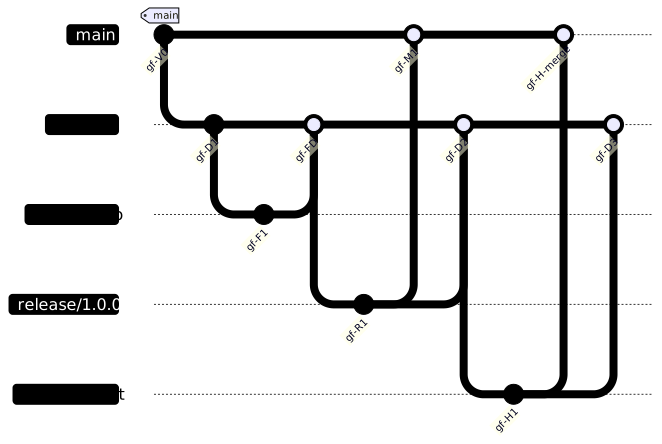
GitFlow: main, develop, feature, release, and hotfix branches
When to Use
- Larger teams, multiple concurrent streams, multiple versions in production or long-lived support branches.
- Organizations requiring formal release cycles, QA and staging phases, hotfix support.
Pros
- Clear, structured workflow.
- Isolation of work streams, proper release preparation, controlled hotfixes.
- Good for long-term maintenance and version support.
Cons
- Complex: many branches, many merging points.
- Slow: high overhead, especially for small or fast-moving teams.
- Risk of merge mistakes if developers aren’t disciplined.
Verdict
Good for complex projects, mature products, or multiple maintained versions. Probably overkill for small or fast-iterating teams.
GitHub Flow
Description
- A simplified model:
mainholds production-ready code. - Developers create a branch per feature/bug fix (similar to feature-branching), then merge to
mainvia pull request when ready. No separatedevelop, no release branches. - Typical branch names:
feature/<slug>, or any short descriptive name offmain; no fixed prefix is required.
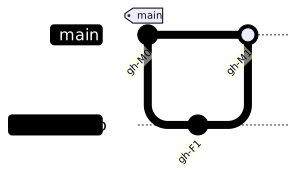
GitHub Flow: feature branches merged directly into main
When to Use
- Teams practising continuous integration / continuous delivery (CI/CD), frequent small releases.
- Small–medium projects, web apps, SaaS, where quick iteration and fast deployment matter.
Pros
- Straightforward to understand and use.
- Encourages small, focused changes.
- Works well with CI/CD pipelines and frequent deployment.
Cons
mainmust always stay production-ready, which requires robust testing and deployment safeguards.- Harder to manage long-term release versions or patch older versions.
- Less formal structure: risks slip if discipline is poor.
Verdict
Excellent for agile, fast-paced teams with good automated testing and deployment.
GitLab Flow
Description
- A middle ground between GitHub Flow and GitFlow: keeps the single
mainintegration branch from GitHub Flow, but adds downstream environment branches (for example,stagingandproduction) or release branches for versioned software. - Feature branches come off
mainand merge back via merge request, same as GitHub Flow. - Deployments happen by promoting
maininto the next environment branch, one merge at a time. - Typical branch names:
feature/*offmain, plus the fixed environment namesstagingandproduction. - Distinct from Environment Branching (below):
mainstays the single integration point here, and the environment branches only ever receive promotions from it.
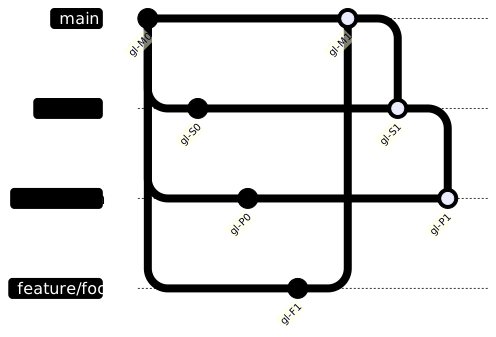
GitLab Flow: main promoted through staging and production
When to Use
- Teams that want GitHub Flow’s simplicity but need a visible, auditable path from
mainto each deployed environment. - Products with a staging/QA gate before production, or that need versioned releases without the full weight of GitFlow.
Pros
- Simpler than GitFlow, more structured than GitHub Flow.
- Environment branches double as a live record of what is deployed where.
- Works for both continuous delivery and scheduled releases.
Cons
- More branches than GitHub Flow, and still needs discipline to avoid environment drift.
- Cherry-picking or hotfixing “backwards” (for example, production before main) can get confusing.
- Choosing where a fix belongs (main vs environment branch) is a recurring judgement call.
Verdict
A sensible default when GitHub Flow feels too loose but GitFlow feels too heavy.
Trunk-Based Development
Description
- Developers integrate changes frequently into a single shared branch, often
main(the “trunk”). - Use short-lived feature branches or commit directly, but merge back very frequently (daily or even more often). Some teams use feature flags to hide incomplete work.
- Typical branch names: short, disposable branches such as
<initials>/<slug>, alive for a day or two at most.
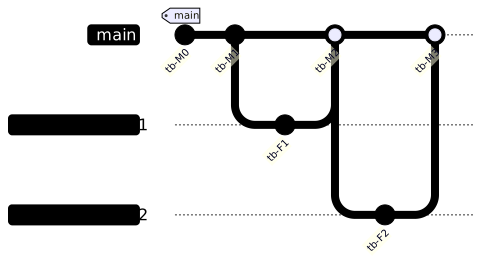
Trunk-Based Development: short-lived branches merged frequently
When to Use
- Teams with good automated testing & CI/CD.
- Rapid release cadence, frequent small changes.
- Projects where feature-toggle / flags are used to hide incomplete features.
Pros
- Minimises integration pain, merge conflicts.
- Encourages small incremental changes.
- Supports fast delivery / continuous deployment.
Cons
- Requires discipline, strong testing, feature-flags if features aren’t fully complete.
- Harder to isolate large changes or long-running features.
- Risk that
mainbecomes unstable if process breaks.
Verdict
Effective for teams set up for CI/CD, with strong automation, testing and code discipline.
Environment Branching
Description
- Dedicated long-lived branches represent deployed environments, typically
development→staging→production. - Feature branches are created from, and merged back into,
development. - Promoting a change to the next environment is a merge (or PR) from one environment branch into the next.
- Typical branch names:
feature/*offdevelopment, plus the fixed environment namesdevelopment,staging,production. - Distinct from GitLab Flow (above): there is no separate
mainhere;developmentis itself one of the three environment branches feature work lands on.
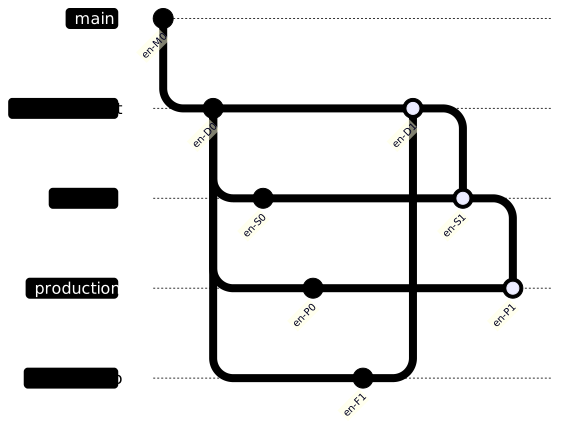
Environment Branching: development promoted through staging and production
When to Use
- Organisations with a formal deployment pipeline and distinct environment owners or sign-off gates.
- Regulated or infrastructure-heavy contexts where “what is in staging vs production” needs to be answerable from the branch list alone.
Pros
- Clear, visual mapping between branches and the deployment pipeline.
- Straightforward to see, and roll back, what is live in each environment.
- Supports formal change-approval processes between environments.
Cons
- Environment branches can drift apart if promotions are skipped or done out of order.
- Extra merge overhead compared to a single trunk.
- Does not suit frequent, small releases well; better for staged rollouts.
Verdict
Worth it when the environments themselves need governance, not only the code.
Release-Branching / Maintenance Branching
Description
main(or trunk) is used for ongoing development.- For each planned version or release, a dedicated
release/x.y(or similar) branch is created. - Bug fixes can go into release branches. Release branches may receive hotfixes.
- Once released, release branch may be merged into main (or remain for maintenance), depending on policy. Also allowing multiple active release versions.
- Typical branch names:
release/x.y, withhotfix/x.y.zfor urgent fixes against a specific release. - Distinct from GitFlow’s
release/*branches: GitFlow cuts a release branch to stabilise one upcoming release and then retires it, while here release branches are often kept indefinitely, one per version still under support.
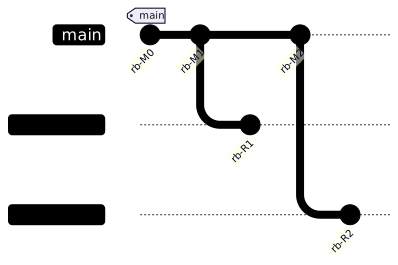
Release-Branching: dedicated branches per release version
When to Use
- Products that need long-term maintenance of multiple versions (for example, enterprise or LTS support).
- Use cases where you cannot always keep everyone on the latest version; older versions must be maintained.
Pros
- Clean version separation.
- Ability to patch old versions without interfering with ongoing development.
- Clear release history and stability.
Cons
- Branch proliferation.
- Cherry-picking fixes across branches is error-prone.
- More management overhead.
Verdict
Useful for mature products needing long-term support and multiple active versions, but adds overhead and complexity.
Cherry-pick Release Branching (Selective Release)
This is the pattern for a team that runs trunk-based development for merging (every completed feature lands on main) but wants a curated release. Rather than branching release/x.y from main with everything up to that point, the release branch starts from a stable point. Only specific, already-merged features are cherry-picked onto it.
Description
mainis the single source of truth: all completed features merge here as they finish (trunk-based style).- When a release is due, a
release/x.ybranch is cut. - Instead of merging
mainwholesale, individual feature commits (or merge commits) are cherry-picked frommainonto the release branch, so a feature can be “done” and sitting inmainwithout necessarily shipping in the next release. - Anything not cherry-picked waits for a later release.
- Typical branch names: ordinary
feature/*branches merged intomain, plusrelease/x.ycut for each curated release.
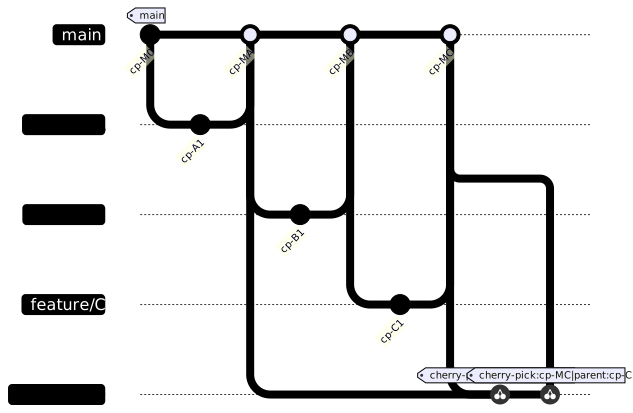
Cherry-pick Release Branching: selected features cherry-picked into a release branch
Here, features A and C ship in release/1.0; feature B is complete on main but held back on purpose.
When to Use
- No canonical name exists for this in the way “GitFlow” or “GitHub Flow” do, but it is a documented, real-world pattern: teams sometimes call it “cherry-pick to release”, a “curated release branch”, or “selective release”. It shows up wherever teams want the integration benefits of trunk-based merging without every merged feature being release-committed.
- Regulatory or contractual gating, where a specific feature must not ship until a separate approval lands.
- Staggered rollout across customers or regions using the same codebase.
- Teams without mature feature-flag infrastructure who still want to decouple “merged” from “released”.
Pros
- Decouples integration (merging early, avoiding long-lived branches) from release timing.
- No feature-flag machinery required to hold work back.
mainalways reflects the full, current state of development.
Cons
- Manual and error-prone: someone has to track which commits go into which release.
- Cherry-picks can conflict, especially if the held-back feature and a shipped feature touch the same code.
- History diverges between
mainandrelease/x.yin a way that is harder to reason about than a straight merge. - Feature flags are usually the safer alternative for the same goal, if the team can invest in them.
Verdict
A pragmatic escape hatch rather than a strategy to adopt by default. Reach for feature flags first, and use selective cherry-picking when flags are not feasible.
Forking Workflow
Description
- Fundamentally different from the others: instead of branches within one shared repository, each contributor has their own server-side fork of the repository.
- Contributors branch and commit within their own fork, then open a pull request from their fork back to the main (upstream) repository.
- The upstream repository owner reviews and merges; no contributor needs write access to the main repository.
- Typical branch names: whatever a contributor likes in their own fork; only upstream
main(and any release branches) needs a fixed name.

Forking Workflow: contributors submit pull requests from their own forks
When to Use
- Open-source projects with many external, untrusted, or occasional contributors.
- Any project where write access to the canonical repository should stay controlled.
Pros
- Strongest possible isolation: no contributor can push directly to upstream.
- Forces every change through review via pull request.
- Scales to large, distributed, loosely affiliated contributor bases.
Cons
- Heavier setup and mental overhead (keeping a fork in sync with upstream).
- Not needed, and mostly overkill, for a single trusted internal team.
- Requires more Git fluency (remotes, syncing forks) from contributors.
Verdict
The right default for open-source projects; unnecessary ceremony for a closed internal team that already uses feature branches and PRs.
Branch Naming Conventions
Most of the strategies above lean on a <type>/<name> naming convention, such as feature/checkout-flow or release/2.1. This works because Git branches are just refs, stored under .git/refs/heads/<name>, and a / in the name creates a real subdirectory in that path. Two consequences follow directly from that:
- A namespace prefix (
feature/,release/,hotfix/) groups related branches together in tooling that understands the convention (branch lists, CI triggers, protection rules), without needing any special Git feature. - You cannot have a branch called
releaseand a branch calledrelease/1.0at the same time. Git stores the first as the filerefs/heads/releaseand the second asrefs/heads/release/1.0, and a file cannot also be a directory. Git refuses the second branch with an error such ascannot lock ref ... 'refs/heads/release' exists; cannot create 'refs/heads/release/1.0'. Pick a convention (barereleasefor a single active release, orrelease/x.yfor several) and stay on one side of it.
A common set of prefixes, independent of which strategy you use:
| Prefix | Typical use |
|---|---|
feature/* |
New functionality, not yet in main |
bugfix/* |
A fix for an issue found before release |
hotfix/* |
An urgent fix against code already in production |
release/* |
Stabilising a specific version ahead of release |
chore/* |
Tooling, dependency bumps, or other non-user-facing work |
docs/* |
Documentation-only changes |
Common branch-name prefixes and what they signal
Comparing the strategies
| Strategy | Branch overhead | Release control | Good Fit |
|---|---|---|---|
| Main-Only | None | None (every commit is live) | Solo projects, prototypes |
| Feature-Branching | Low | Loose (merge when ready) | Most teams, most projects |
| GitFlow | High | Strict, scheduled releases | Large teams, multiple maintained versions |
| GitHub Flow | Low | None (deploy on merge) | CI/CD teams shipping continuously |
| GitLab Flow | Medium | Staged, via environment branches | Staging/production gate before release |
| Trunk-Based Development | Minimal | None (feature flags instead) | Mature CI/CD, high commit frequency |
| Environment Branching | Medium | Staged, per environment | Formal, governed deployment pipelines |
| Release-Branching / Maintenance | Medium-high | Per-version, long-lived | Products supporting several live versions |
| Cherry-pick Release Branching | Medium | Selective, per feature | Curated releases without feature-flag tooling |
| Forking Workflow | High (per contributor) | Via PR review | Open-source, untrusted or external contributors |
Comparison of the branching strategies covered in this guide
Useful links
(only links, no references in the content)
- https://www.youtube.com/watch?v=WBg9mlpzEYU
- https://www.youtube.com/watch?v=Mfz8NQncwiQ
- https://www.youtube.com/watch?v=hae9zg0-sZY
- https://www.youtube.com/watch?v=dgOpnebZkRo
Appendix: Command Reference
Basic Concepts and Terms
| Term | Meaning |
|---|---|
| Repository | The full project history (in .git) |
| Working Directory | The actual files you’re editing |
| Index (Staging Area) | The next commit snapshot |
| Commit | A snapshot of staged changes |
| Branch | A pointer to a commit |
| HEAD | Where you are in the history (usually the current branch) |
| DAG | Directed Acyclic Graph that models history |
| Remote | Another copy of the repo (for example, origin) |
| Worktree | A second checkout of the repo in another directory |
| Bisect | Binary search across commits to find a regression |
Basic Git concepts and terms
Global Setup
These are one-time settings.
Identity
git config --global user.name "Your Name"
git config --global user.email "you@example.com"
Defaults and Safety
git config --global init.defaultBranch main
git config --global pull.rebase false   # or true if your team prefers
git config --global core.autocrlf input # depends on OS
Credential Helper
git config --global credential.helper store
Repository Creation and Cloning
Start a New Repo
git init
Creates .git/ and starts tracking.
Clone Existing
git clone <url>
cd repo
Add Remote Later
git remote add origin <url>
Status, Diff, Add, Commit
Status
git status
Shows:
- modified files
- staged files
- untracked files
- branch info
Diff
git diff
git diff --staged
git diff HEAD~1 HEAD
Stage changes
git add file.c
git add .           # everything (careful)
git add -p          # interactive hunks
Commit
git commit -m "Short summary"
git commit
Without -m opens editor for detailed message.
Ignoring and cleaning
echo "*.log" >> .gitignore
git clean -n        # preview what would be removed
git clean -fd        # remove untracked files and directories
.gitignore only stops untracked files being tracked; it does not affect files Git already knows about. git clean removes untracked files from the working directory; always run -n first to preview.
Branch Management and Switching
List branches
git branch
git branch -a      # includes remote branches
Create branch
git branch feature/x
Create and switch
git checkout -b feature/x
Switch
git checkout feature/x
or the newer, narrower form:
git switch feature/x
checkout is overloaded: it switches branches and restores files, which is why switch (branches) and restore (files) were split out. Prefer switch and restore for clarity in day-to-day use; checkout still works everywhere and is what most older docs and scripts use.
Rename branch
git branch -m old-name new-name     # rename current or named branch
git push origin -u new-name         # push the new name
git push origin --delete old-name   # remove the old name upstream
Track a remote branch
git branch -vv                                  # show tracking status for all local branches
git branch --set-upstream-to=origin/feature/x    # set tracking on the current branch
git checkout --track origin/feature/x            # create + track in one step
Find merged and stale branches
git branch --merged main       # branches fully merged into main, safe to delete
git branch --no-merged main    # branches with unmerged work
git fetch --prune              # remove local references to deleted remote branches
Delete branch
git branch -d feature/x      # safe delete (refuse if unmerged)
git branch -D feature/x      # force delete
git push origin --delete feature/x   # delete on the remote
Worktrees (multiple branches checked out at once)
git worktree add ../hotfix-dir hotfix/urgent
git worktree list
git worktree remove ../hotfix-dir
A worktree checks out another branch into a separate directory, backed by the same .git database. Useful for working on a hotfix without stashing or disturbing your current branch’s state.
Fetch, Pull, Push
Fetch
git fetch origin
Updates remote-tracking (does not merge).
Pull
git pull
git pull origin main
Fetch + merge (or rebase if configured).
Push
git push origin main
git push -u origin feature/x
-u sets upstream so later git push works without args.
Merging
Fast-forward Merge (Quick Reference)
git checkout main
git merge feature/x
If no divergence, branch pointer moves forward.
No Fast-forward Merge
git merge --no-ff feature/x
Forces a merge commit even if FF possible.
Conflict resolution
git status
git diff
# manually edit conflict markers
git add .
git commit
Rebase
Rebase onto latest main
git checkout feature/x
git fetch origin
git rebase origin/main
Interactive rebase (tidy history)
git rebase -i HEAD~5
Options:
- pick
- squash
- reword
- drop
- fixup (like squash, but discards the fixup commit’s message)
Fixup and autosquash
git commit --fixup <commit-id>   # creates a "fixup! ..." commit
git rebase -i --autosquash HEAD~5
--fixup marks a commit as belonging to an earlier one. --autosquash then reorders the interactive rebase list so those fixups land next to, and squash into, the commit they target, without you moving lines by hand.
Abort or continue
git rebase --abort
git rebase --continue
Undoing Mistakes
Unstage
git restore --staged file.c
Discard local changes
git restore file.c
Reset (local history rewrite)
git reset --soft HEAD~1
git reset --mixed HEAD~1
git reset --hard HEAD~1
Warning
Never use reset on pushed commits.
Revert (safe for shared history)
git revert <commit-id>
Creates a new commit that undoes a past commit.
Cherry-Pick
Apply a specific commit from elsewhere:
git checkout main
git cherry-pick <commit-id>
Used for backporting fixes; use sparingly.
Stash
Save work without committing:
git stash push -m "WIP"
git stash push --include-untracked   # also stash new, untracked files
git stash list
git stash show stash@{0}
git stash apply stash@{0}            # restore, keep it in the stash list
git stash pop                        # restore, then delete from the stash list
git stash drop stash@{0}             # delete without restoring
apply is safer when you might want the same stash again elsewhere; pop is the common case of “restore and forget”.
Log and Reflog
Log
git log
git log --oneline
git log --oneline --graph --decorate --all
git log --patch
git log --stat
Useful patterns:
--first-parentfor release history-- path/to/filefor file history
Reflog
git reflog
Shows HEAD movements.
Use to recover lost work:
git reset --hard <id-from-reflog>
Bisect
git bisect start
git bisect bad
git bisect good v1.4.0
# test, then: git bisect good | git bisect bad
git bisect reset

git bisect start HEAD v1.4.0
git bisect run npm test      # automated
Tags and Releases
Create tags
git tag v1.0.0
git tag -a v1.0.0 -m "Description"
Push tags
git push origin v1.0.0
git push origin --tags
Submodules
git submodule add https://example.com/lib.git libs/lib
git clone --recurse-submodules https://example.com/app.git
git submodule update --init --recursive
git submodule status
git submodule foreach 'git pull origin main'
Subtrees
git subtree add --prefix=libs/lib https://example.com/lib.git main --squash
git subtree pull --prefix=libs/lib https://example.com/lib.git main --squash
git subtree push --prefix=libs/lib https://example.com/lib.git main
Merge Strategies (Quick Reference)
git merge -s ort feature/x          # default; usually omitted
git merge --ff-only feature/x       # refuse unless a fast-forward is possible
git merge -s ours feature/x         # keep our tree entirely, discard theirs
git merge -X ours feature/x         # normal merge, prefer our side on conflicting hunks
git merge branchA branchB branchC   # octopus, for more than two branches at once
Hooks
git config core.hooksPath .githooks   # use a versioned hooks directory
chmod +x .githooks/pre-commit         # hooks must be executable
Useful Command Flows
This is where the cheat-sheet becomes a practical reference.
Feature Development Flow
git checkout main
git pull
git checkout -b feature/abc
# work…
git add .
git commit -m "Implement X"
git fetch origin
git rebase origin/main
git push -u origin feature/abc
# create PR
Basic Merge Flow
git checkout main
git pull
git merge feature/abc
git push
PR Fixup Flow (after comments)
git checkout feature/abc
# apply fixes
git add .
git commit -m "Address review feedback"
git push
Or tidy history before merge:
git rebase -i origin/main
git push --force-with-lease
Use --force-with-lease for safety (protects peers’ work).
Recover Lost Work
git reflog
git checkout <id>
git branch recovery
Clean Up Local Branches
git branch --merged
git branch -d feature/old